

Design with AI: Practical Tips and Free or Paid Tools
Short answer: To design with AI, start with a clear brief, explore several directions, then refine the strongest option in an editable design tool. AI can help with graphics, product concepts, packaging ideas and digital interfaces. The useful result is a design your team can explain, check and use.
A picture can look impressive and still miss the job. The logo disappears when reduced, the product looks impossible to assemble, or the text is too small to read on a phone. Producing another image is easy. Deciding what needs to improve takes judgement.
For Malaysian business owners, marketing staff and workplace teams, that is where the real opportunity sits: using AI to explore options while keeping control of the finished work.
What does it mean to design with AI?
Designing with AI means using generative tools to assist parts of a design process. You might explore visual directions, change a background, develop a product mockup or compare page layouts. You still decide who the design serves and what it must achieve.
Three outputs deserve different expectations. A concept communicates a direction. A mockup shows how it might look in context. A production file contains the specifications someone needs to print, build or implement it. A convincing concept image does not automatically provide the other two.
Start with the brief, not the tool
Before opening an image generator, write down the audience, purpose, format, brand requirements and constraints. A recruitment poster, a client gift and a mobile booking page need different decisions, even if they share the same colours.
Be concrete. Instead of asking for a premium design, explain what premium means for this job: restrained colours, generous spacing, readable type and materials the supplier can actually provide. Include what must remain unchanged, such as an approved logo or required product dimensions.
For a fictional desk organiser, the brief could read:
Explore three visual directions for a compact desk organiser for office staff. It should hold pens and small notes without dominating the desk. Compare a warm natural direction, a clean contemporary direction and a playful direction. Keep the same viewing angle. Treat the materials as proposals to validate, not confirmed manufacturing specifications.
That gives the team something useful to compare. It also makes it easier to notice when an attractive option ignores the brief.
Five practical tips for better AI-assisted design
1. Ask for different directions before small variations
Ten nearly identical images do not give you ten meaningful choices. Ask for options that differ in layout, visual tone or approach to the user’s need. Compare those first, then develop one direction.
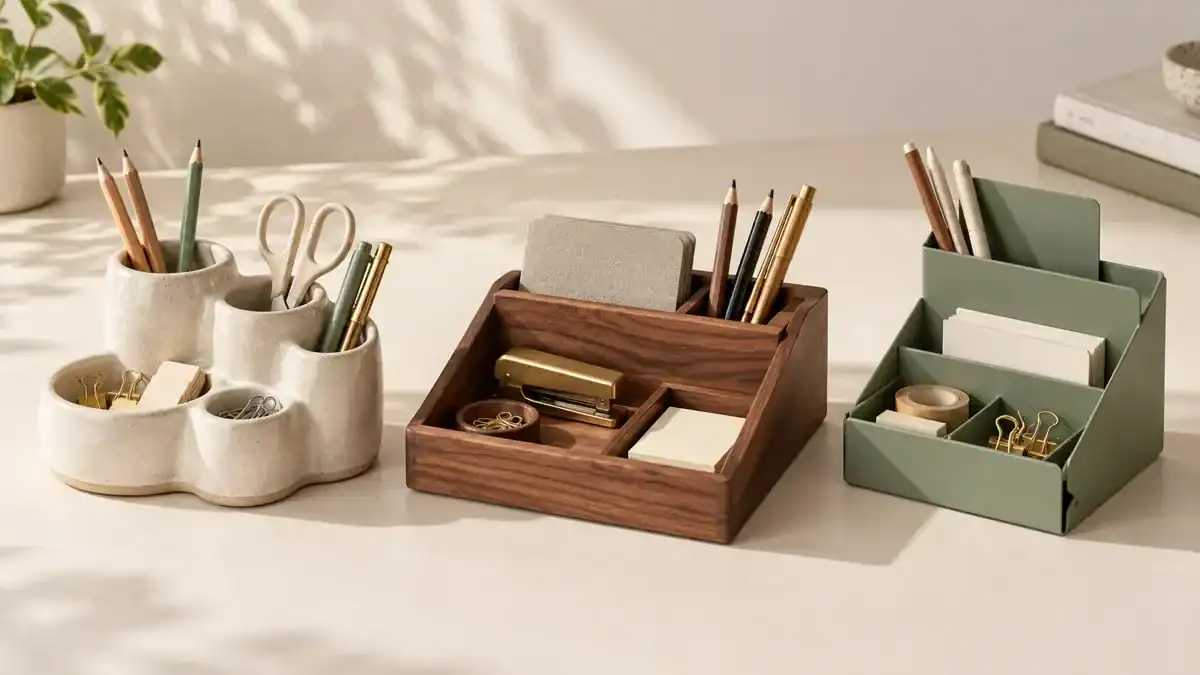
2. Use references to explain the qualities you want
Describe what a reference contributes: softer lighting, clearer hierarchy, a warmer palette or a simpler silhouette. Use your own or appropriately licensed references. Avoid asking the tool to reproduce another brand’s distinctive design.
3. Change one important thing at a time
If you change the material, shape, colours and background together, you may lose the part you liked. Give focused feedback: keep the proportions, simplify the base, increase contrast. Save useful versions so the team can compare decisions.
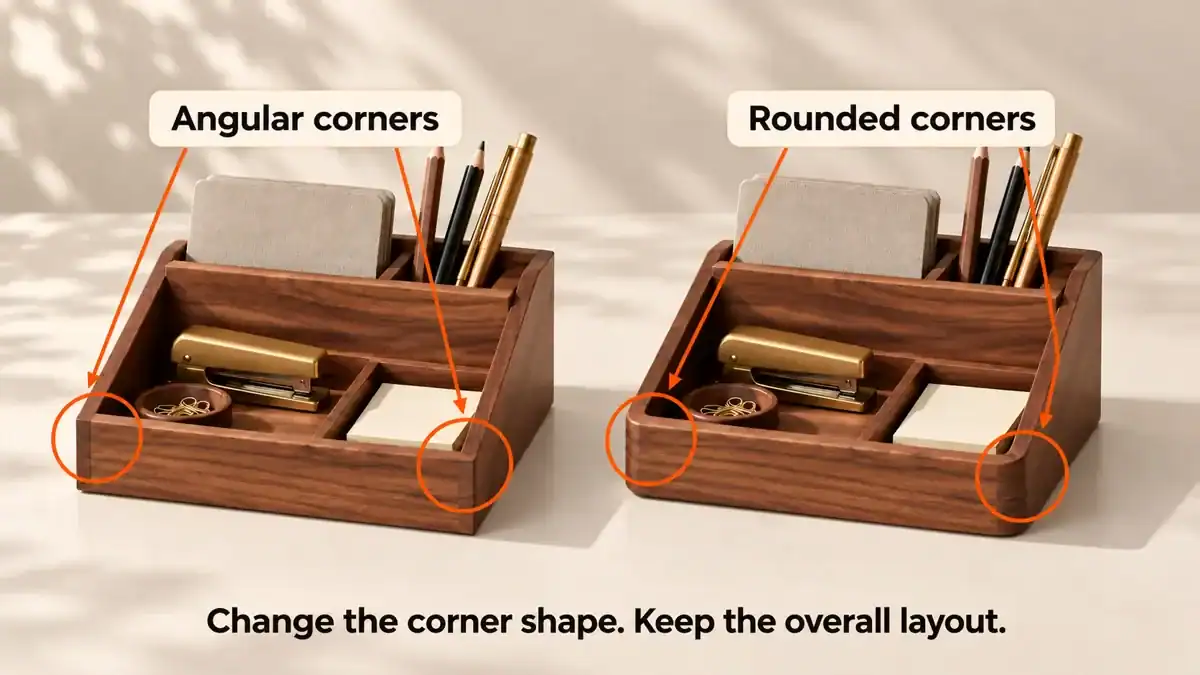
4. Finish exact elements in an editable tool
Set final wording, logos and layout in a design editor where you can check them directly. For teams building those skills, our Canva training with AI is one relevant starting point. Inspect spelling, alignment, contrast and small text at the size people will actually see. Check both the phone view and the intended print size when relevant.
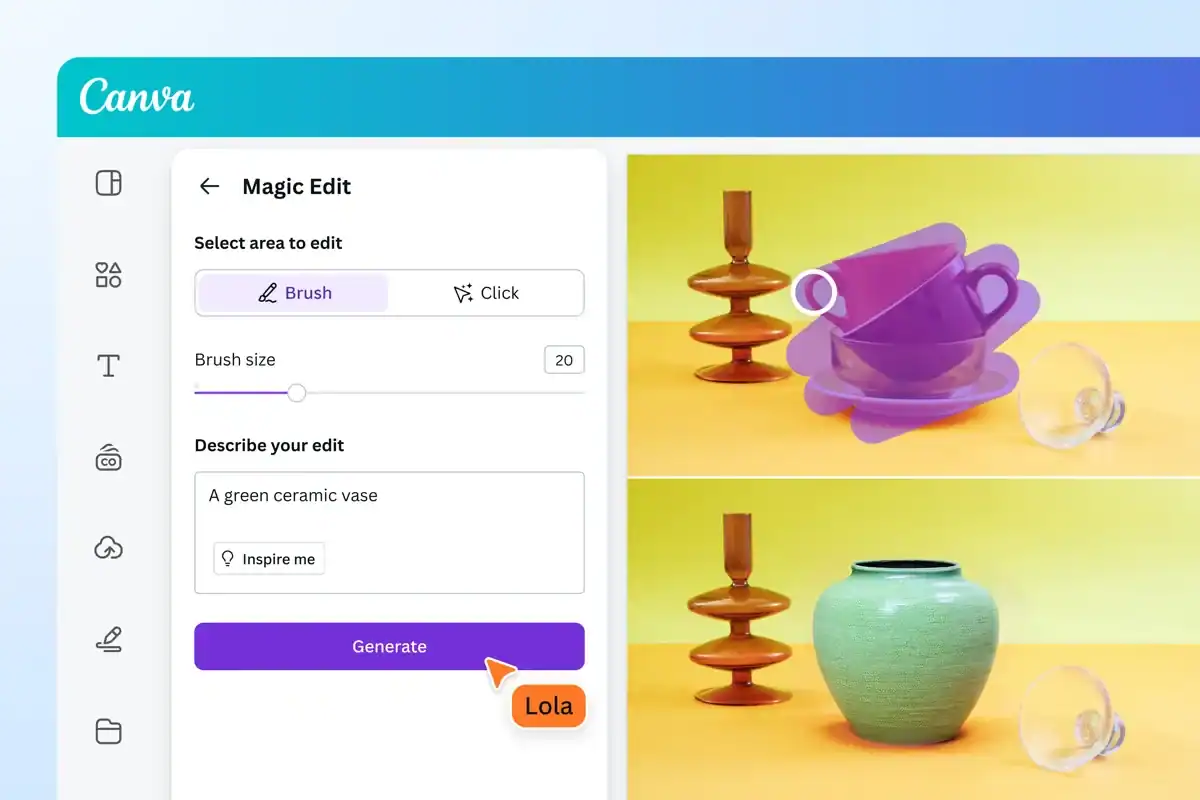
5. Review against the job, not just the appearance
Ask a colleague to explain what they notice first, what action the design suggests and what remains unclear. For physical products, bring the supplier into the discussion before promising dimensions, finishes or cost. A beautiful render can hide awkward joins or unrealistic proportions.
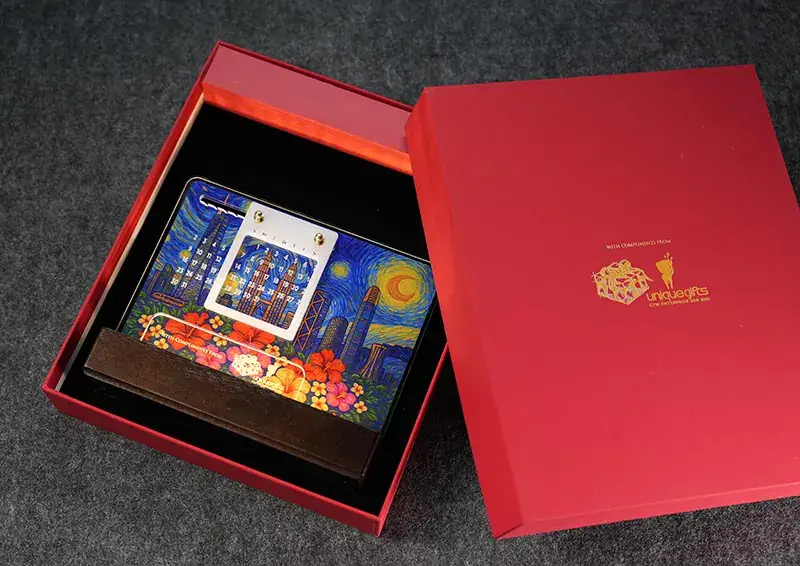
AI product design: a corporate gift example
The LED perpetual calendar featured by Online Premium Gifts offers a useful starting point for discussing desk-gift design. The page shows a product with a wooden base and illuminated acrylic display, with space for branding.
Featured image: AI-generated illustration prepared for Mike Cheong, not an actual client project. The supplier photograph above is a separate product reference.
I understand the design example shared with me involved AI. The linked product page describes the calendar, rather than documenting the AI workflow, so I am using it here as a visual reference rather than a verified case study. For a similar design exercise, AI could help a team explore the visual treatment around an approved product: a restrained logo arrangement, alternative graphic styles or a presentation scene for a proposal. Start with the supplier’s real photograph and artwork area. Keep the underlying product accurate.
Separate a proposed visual treatment from a product promise. Do not let a generated image quietly change the base, add a feature or imply a finish the supplier cannot deliver. Ask for the actual artwork template and a proof before placing an order.
The same discipline applies to packaging, uniforms and display stands. Use the concept to make the conversation clearer. Let the responsible specialist confirm production details.
Which AI design tools should you consider?
These are established options to shortlist by task. The tiers below describe workflow needs, rather than a market-share ranking or a claim that expensive tools always produce better work. Free access, AI credits and commercial-use terms are separate questions.
Tier 1: everyday layouts and marketing visuals
| Tool and official link | Useful starting point | Free and paid access |
|---|---|---|
| Canva | Social graphics, posters and template-based layouts. | Free plan with limited AI allowance. Pro, Business and Enterprise offer additional features and allowances. |
| Adobe Express | Quick branded graphics and editable marketing content. | Free plan available; Premium and business options expand features and content access. AI allowances depend on plan. |
Start here if your main challenge is finishing a usable poster or social visual. A template and a careful edit can be more useful than generating the entire layout from scratch.
Tier 2: concept imagery and visual exploration
| Tool and official link | Useful starting point | Free and paid access |
|---|---|---|
| Adobe Firefly | Image ideas, generative edits and visual exploration. | Limited free daily generations. Paid plans provide larger allowances and additional access; costs depend on the feature and model. |
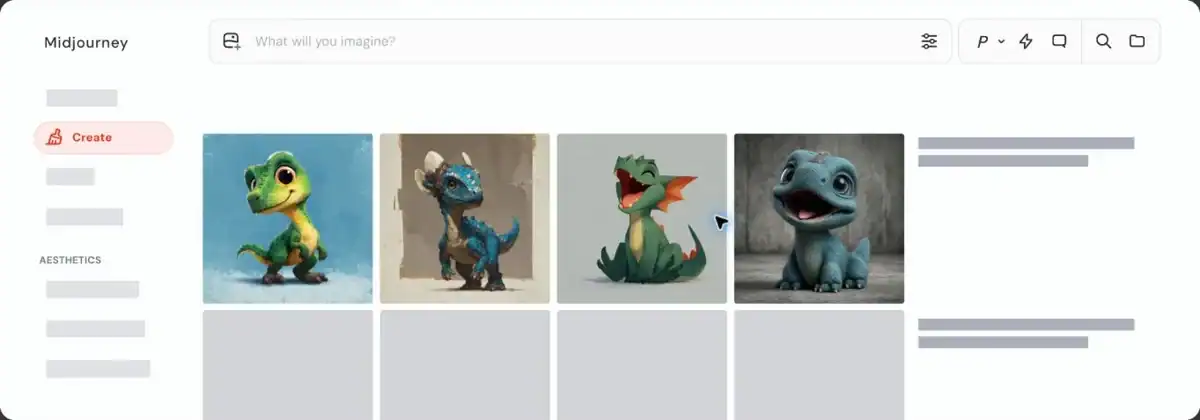
| Midjourney | Exploring visual mood, styling and concept directions. | Paid subscription plans: Basic, Standard, Pro and Mega. Basic is US$10/month on monthly billing. Private Stealth Mode requires Pro or Mega. |
Use these when you need visual options to discuss. Judge their output against the brief, then rebuild or refine the selected direction where precise control is needed.
Tier 3: specialist assets and digital product workflows
| Tool and official link | Useful starting point | Free and paid access |
|---|---|---|
| Recraft | Image and vector asset exploration for design workflows. | Free plan available, but its outputs are public and not licensed for commercial use. Paid-plan outputs have commercial rights under its terms. |
| Figma | Interface layouts, prototypes and collaborative digital design. | Free Starter and paid Professional, Organization and Enterprise plans. AI access uses credits and varies by feature, plan and seat. |
A specialist workflow is useful when you need editable assets, interface behaviour or a more structured handover. It also requires the relevant design skill. Having an AI feature does not remove the need to check vectors, interaction states or implementation details.
Plan availability checked 27 October 2026 against the linked official pages. Prices, allowances and features can change. The Midjourney figure is in USD and is not a Malaysian checkout quote. Check your billing region, taxes, seat requirements and current usage terms before subscribing.
How to choose a free or paid tool
Start with one real task and the free allowance where it suits the work. Check whether you can export the format you need, edit the important elements, keep sensitive work private and use the output commercially. A free trial is different from an ongoing free plan.
Pay when a specific limit is costing you useful work: you need more generations, a required export, team controls or an appropriate commercial licence. Compare the time needed to reach an approved design, including corrections. Counting how many images you can generate will not tell you that.
A simple review before you share
Check these five things: the design answers the brief; the wording and logo are correct; it works at the intended size; source assets and output terms suit the use; and a named person has approved it. For a physical product, add supplier confirmation of the artwork and specifications.
For websites, resize and compress images before upload, retain clear source credits, provide useful alt text and set image dimensions. An oversized image can slow down a page even when the design looks good. For broader workplace boundaries, read our guide to using AI at work safely.
Frequently asked questions
Can I design with AI if I am not a designer?
Yes, you can explore ideas and build straightforward visuals with suitable tools. Learn the basics of hierarchy, spacing, contrast and audience needs. Bring in a designer when the work needs specialist judgement or a production-ready handover.
Which free AI design tool should I start with?
For everyday graphics, start by comparing Canva Free and Adobe Express Free. For concept imagery, consider Firefly’s limited free access. Choose based on the task, export requirements and current terms, rather than the longest feature list.
Can AI design a physical product ready for manufacturing?
A generated image can communicate a proposed appearance. It does not establish dimensions, materials, tolerances, electrical safety or manufacturing feasibility. Physical products still need qualified design and supplier checks.
Can I use every AI-generated image commercially?
No. Check the specific service, plan, model and input assets. Recraft’s current free-plan restriction is one example of why free generation and business-use permission should be checked separately.
Start with one design you actually need
Choose a small job, write a clear brief and compare three directions. Finish the strongest option, review it at the intended size and record what had to be corrected. That gives you a practical basis for deciding where AI helps your team.
For teams building these habits across workplace tasks, explore AI training with Mike Cheong. The aim is work people can use and explain, with clear decisions behind it.


